Dinner Before the Flight
Sometimes the best airport meal isn't in a fancy restaurant — it's in the food court. On July 27, our group of four had dinner at PLEXEATING, a Korean food corner in the central food court of Incheon Airport Terminal 2, before heading out. Four dishes, 60,000 won total, and everyone left full.
The Food Court: How It Works
PLEXEATING sits in the central dining area of Terminal 2 (중앙식당가). Ordering is simple: check the menu board, pay at the counter, and take the receipt with a number to your table. The menu board is printed in Korean, English, Japanese, and Chinese — clearly built for international travelers. Trays are self-service, and the seating area is the shared food court hall.
Menu & Prices
The corner's menu centers on Korean comfort food, mostly soup-and-dumpling or noodle-and-dumpling sets:
- Short Rib Soup (소갈비탕) & Dumplings (2 pcs): SET 24,000 / SINGLE 20,000
- Beef Bone Soup (곰탕) & Dumplings (2 pcs): SET 16,500 / SINGLE 12,500
- Spicy Beef Bone Soup & Dumplings (2 pcs): SET 17,500 / SINGLE 13,500
- Cold Buckwheat Noodles (물냉면) & Dumplings (2 pcs): SET 11,000
- Spicy Cold Buckwheat Noodles (비빔냉면) & Dumplings (2 pcs): SET 11,500
- Curry King Pork Cutlet (왕돈까스): 13,500
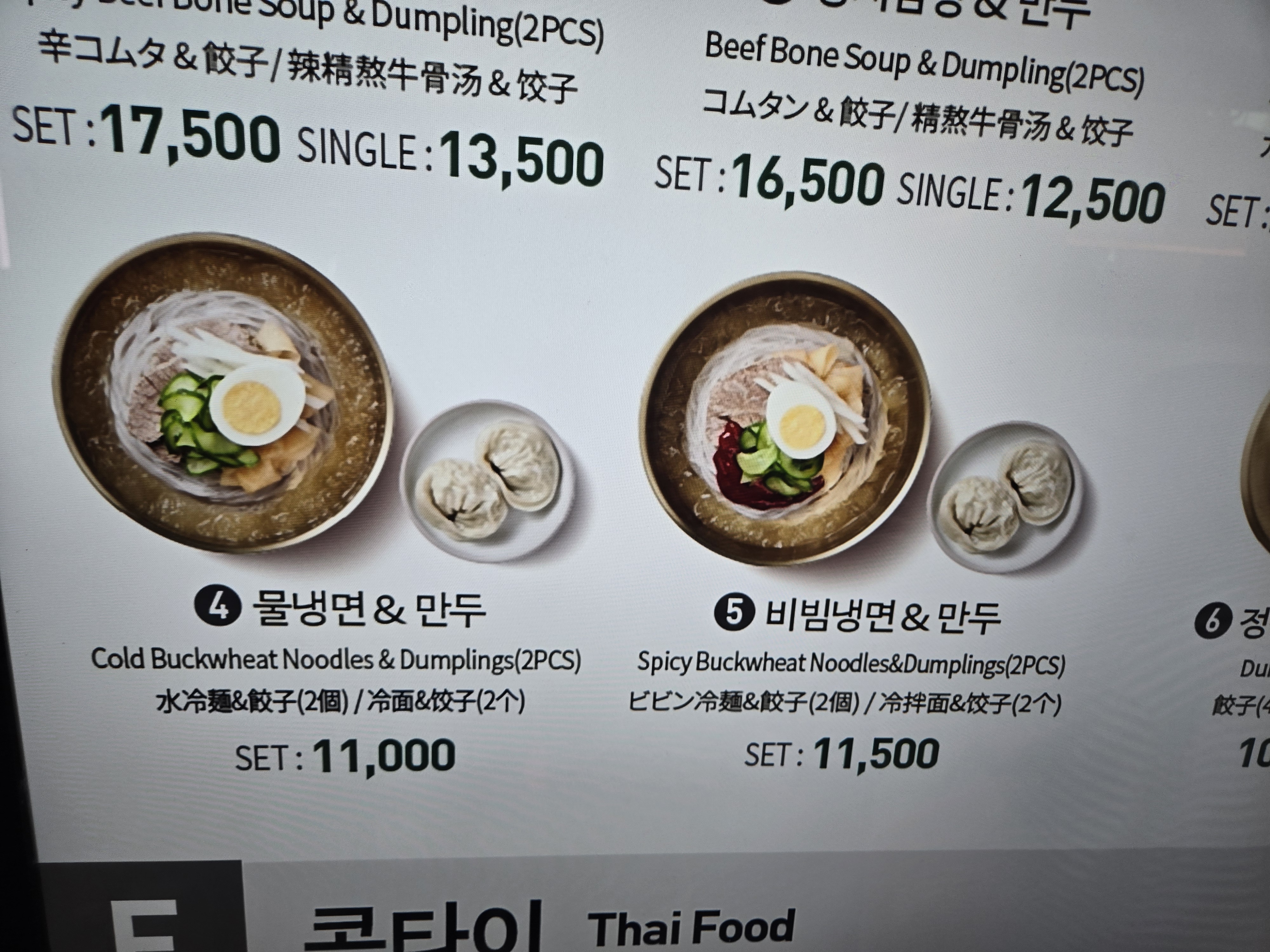
SET menus come with dumplings, and the combo set we ordered added a bowl of rice on top.
What We Ordered
Curry King Pork Cutlet (13,500 won)
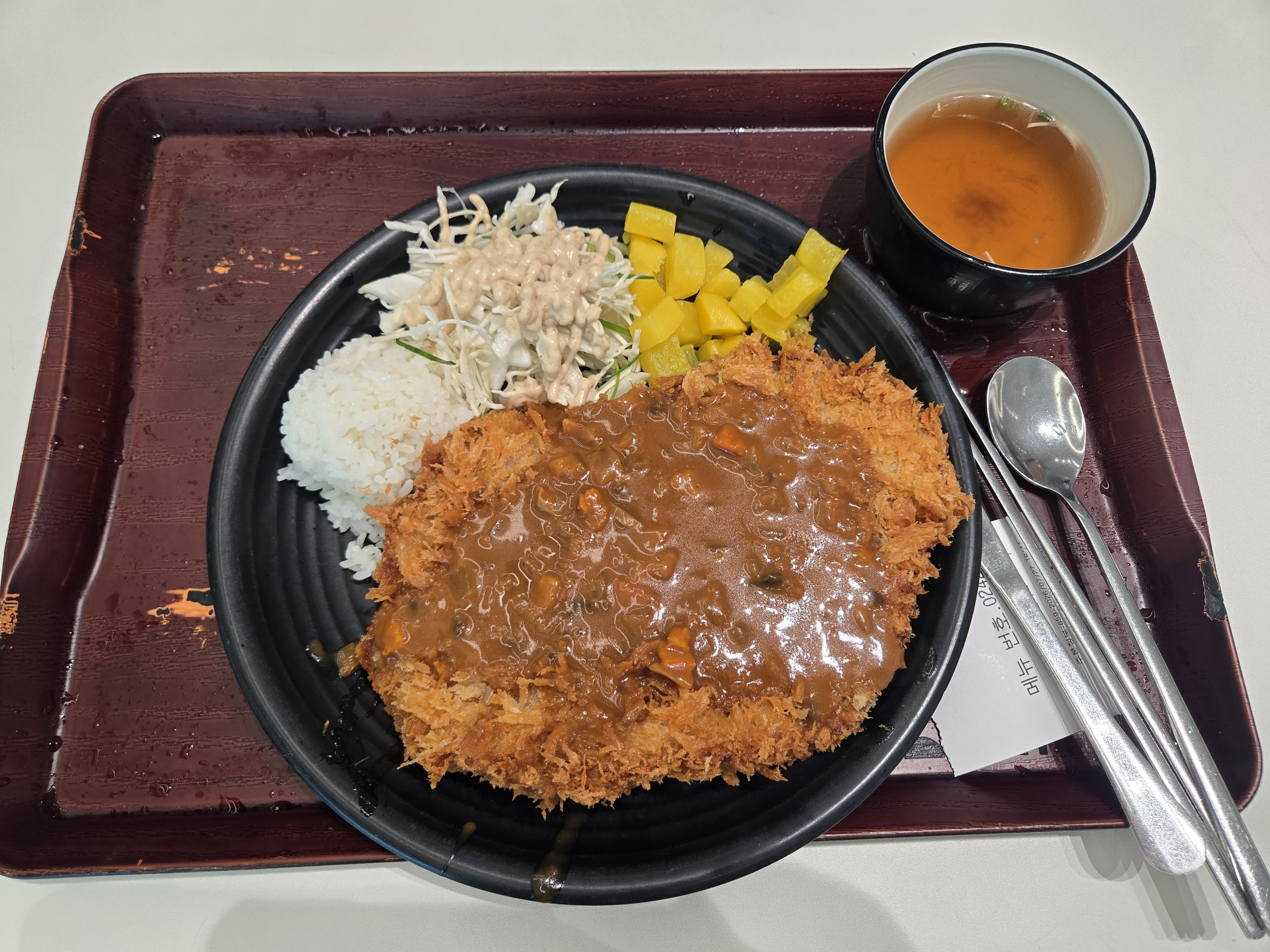
A big, crispy pork cutlet covered in thick curry sauce, served with rice, shredded cabbage salad, pickled radish, and a small bowl of soup. The cutlet was genuinely large — the "king" in the name isn't an exaggeration. The curry sauce was rich and mild, the kind that keeps your spoon moving. One of the best value-for-money plates in the food court.
Combo Set: Short Rib Soup & Dumplings + Rice (24,000 won)

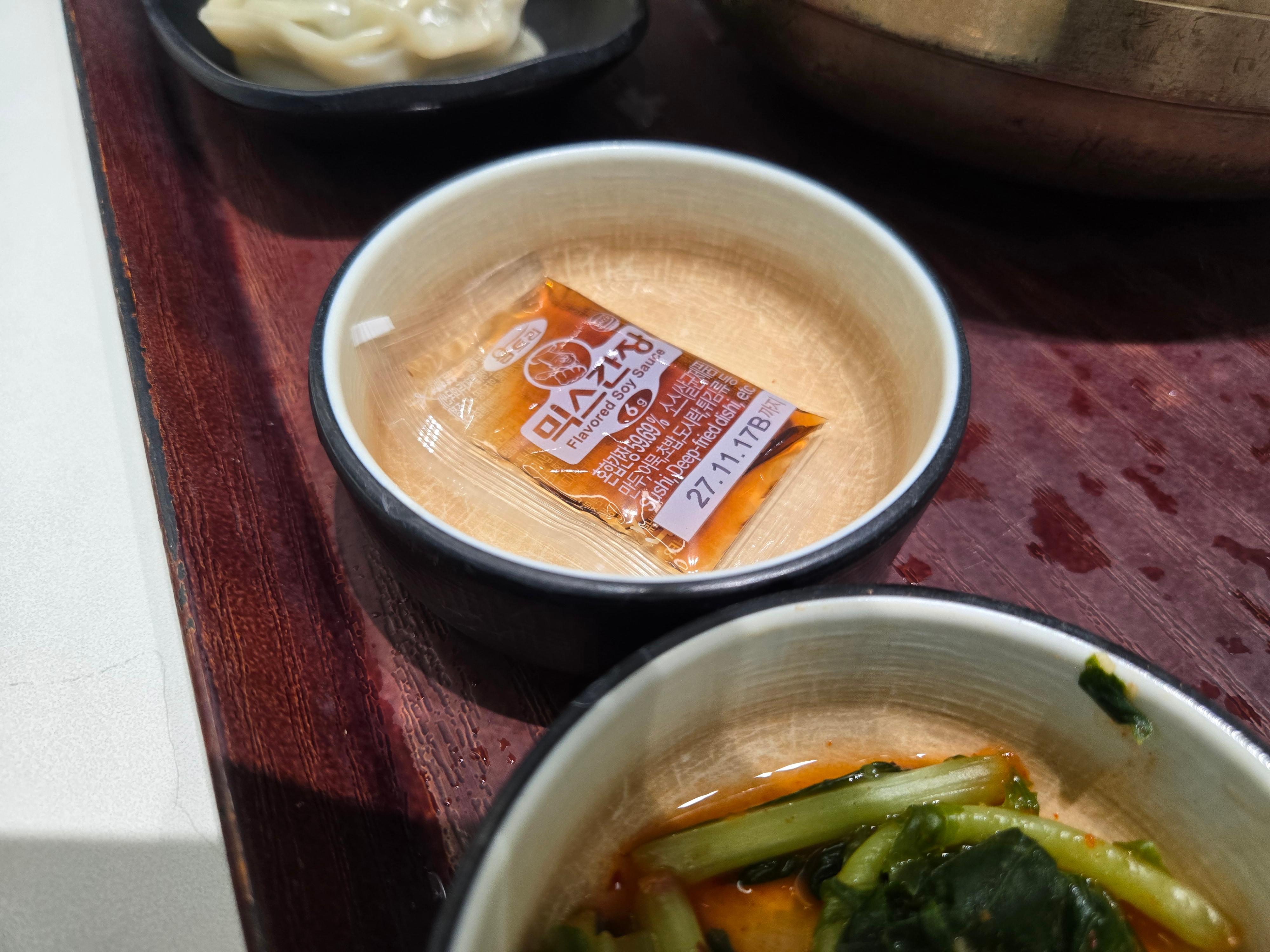
This was the most generous tray of the night: a sizzling stone pot of galbitang-style soup with tender short rib pieces, egg garnish, jujube, and green onions, plus two big steamed dumplings, a bowl of rice, kimchi, kkakdugi, and a dipping sauce.
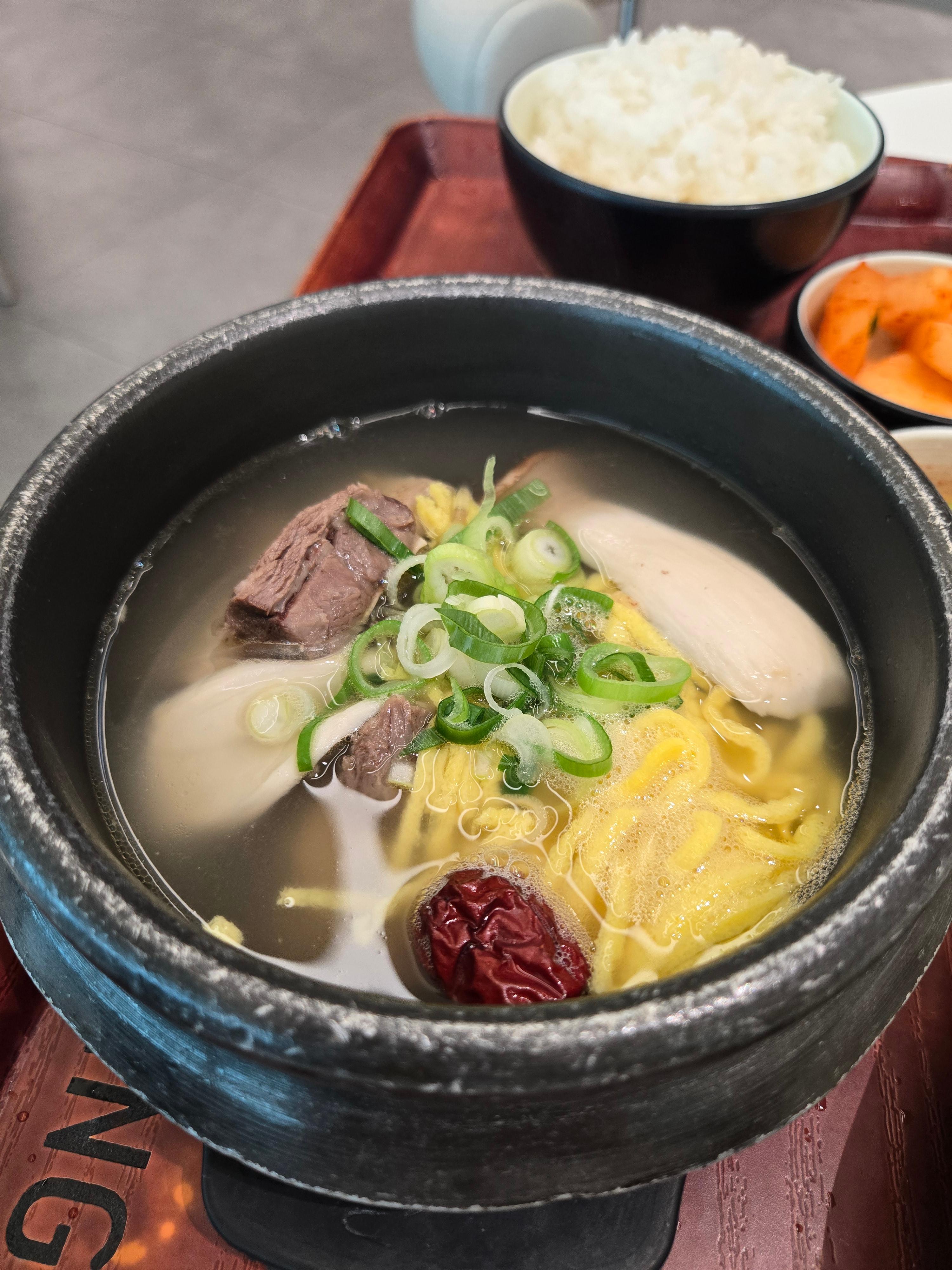
The broth was clear and savory — the kind of clean, beefy flavor that warms you up before a long flight. The dumplings were plump with a juicy filling. Between the soup, the dumplings, and the rice, this set alone could feed one very hungry traveler.
Mul-Naengmyeon & Dumplings (11,000 won)

Cold buckwheat noodles in an icy, clear broth, topped with beef slices, half a boiled egg, cucumber, and pear. Refreshing and light — perfect for a hot July evening. The two steamed dumplings on the side made it a complete meal rather than just a noodle snack.
Bibim-Naengmyeon & Dumplings (11,500 won)
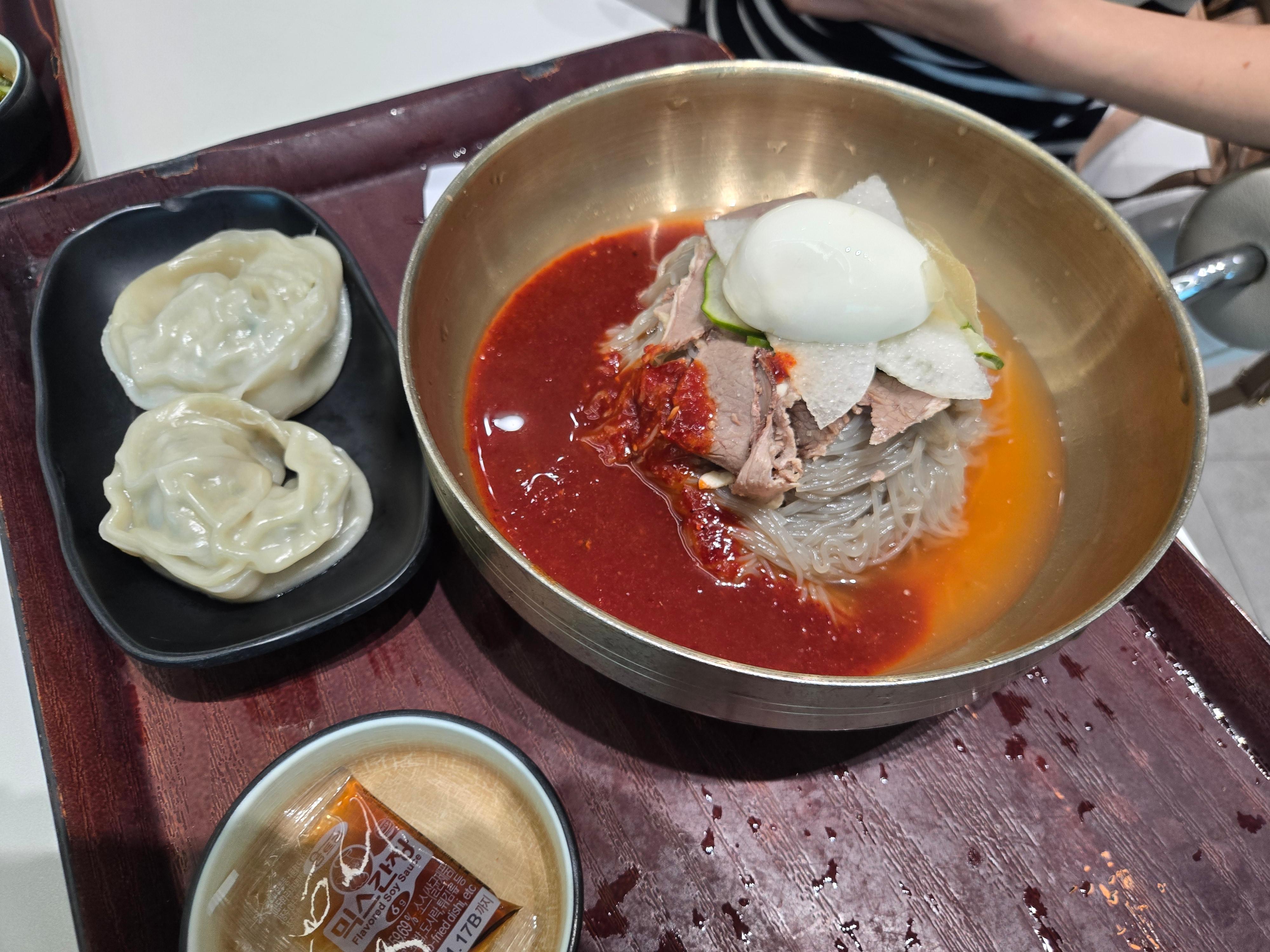
The spicy sibling: chewy buckwheat noodles coated in a sweet-spicy gochujang sauce, with the same beef, egg, and vegetable toppings. If you like your airport meal with a kick, this is the one. The dumplings again came as a pair of plump, steaming mandu.
Restaurant Info
- Name: PLEXEATING (플렉스이팅)
- Location: Central food court (중앙식당가), Incheon Airport Terminal 2
- Address: 446, Terminal 2-daero, Jung-gu, Incheon (from receipt)
- Phone: 032-743-6551 (from receipt)
- Hours: not confirmed — please check before visiting
Verdict
PLEXEATING is exactly what an airport food court should be: fast, affordable, and satisfying. The combo set and the king pork cutlet stand out for portion size, and the naengmyeon sets are a refreshing choice in summer. Four people ate well for 60,000 won — hard to beat that at an international airport. If you have time to kill at Terminal 2, this corner is worth a stop.